










ChatGPT has become a useful tool for writing, research, coding, data analysis, and everyday business tasks. However, many workflows require information from other applications or actions beyond generating a response. Connected tools and plugins help bridge that gap by bringing external information and supported actions into your workflow.
The best ChatGPT plugins depend on what you want to accomplish. Some connect ChatGPT with workplace documents, while others support design, research, automation, or project management. If you are searching for a ChatGPT plugin to improve a specific task, it is important to check what is currently available in your account. This guide covers 11 useful tools and integrations, explains their practical applications, and highlights what to consider before connecting them.
What Are ChatGPT Plugins?
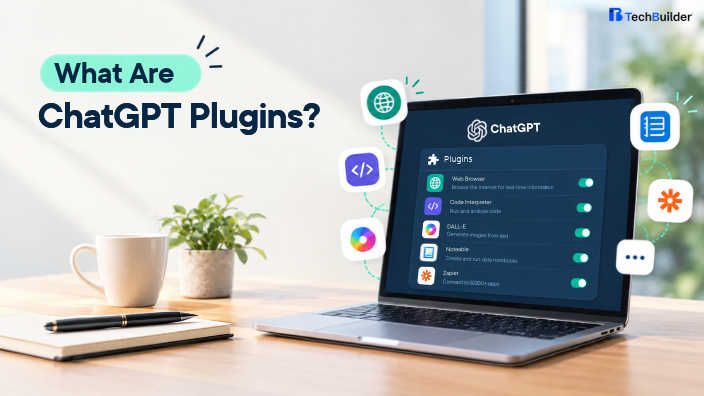
ChatGPT plugins bring together capabilities such as connected apps, reusable instructions, and workflow tools. Depending on the integration, they can help you retrieve information from an external service, work with connected files, or perform supported actions without switching between multiple applications. Access depends on the plugin, your plan, and workspace permissions.
The term ChatGPT plugin is also used informally for browser extensions that enhance the ChatGPT experience. These are different from integrations available inside ChatGPT. A ChatGPT Chrome plugin usually refers to a Chrome extension that adds features such as prompt templates, page summaries, or easier access to AI assistance.
11 ChatGPT Plugins and Extensions Worth Exploring
The following selection covers workplace integrations and browser extensions for different use cases. Some are connected-app options, while others are independent Chrome extensions. Verify their current availability, pricing, permissions, and compatibility before installing.
1. Google Drive for Document Workflows
Google Drive is useful when your work involves documents, spreadsheets, presentations, and shared business files. Where the relevant integration is available and authorized, ChatGPT can help you find information in connected content, summarize documents, and organize information without relying entirely on manual copy-and-paste.
This is particularly useful for teams that work with project briefs, research notes, and internal documentation. Review sharing permissions before connecting a company account, especially when files contain confidential information.
2. Slack for Team Communication
Slack is widely used for workplace messaging, project discussions, and team updates. When a Slack integration is available, it can help users search permitted conversations or retrieve relevant context from team discussions through ChatGPT.
For example, a project manager might look for decisions made during an earlier discussion before preparing a status report. The usefulness of the integration depends on authorized access, available actions, and the workspace’s configuration.
3. Canva for Visual Content
Canva is useful for creating presentations, social media graphics, marketing materials, and other visual assets. Where a supported Canva integration is available, it can help users move from a written brief toward visual content more efficiently.
Marketing teams can use this type of workflow to turn campaign ideas into presentation concepts or social media assets. Review the final design for brand consistency, factual accuracy, image rights, and readability before publishing.
4. Zapier for Task Automation
Zapier connects supported applications through automated workflows. Depending on the available integration, it can help link AI-assisted tasks with actions in business tools, reducing repetitive manual work.
For example, a business could explore a workflow that sends a lead form submission to a CRM and triggers a follow-up task. Before deploying automation, define the conditions that trigger each action and test how the workflow handles duplicate records, incomplete information, and failures.
5. Notion for Knowledge Management
Notion helps teams manage notes, documentation, databases, and project information in one workspace. When connected through an available integration, it can make relevant workspace content easier to reference during research and planning.
A content team might use a shared knowledge base for editorial guidelines, topic research, and campaign notes. Connecting this information to ChatGPT can reduce repeated searching, but teams should confirm that access permissions and source documents remain up to date.
6. GitHub for Development Workflows
GitHub supports source-code management, collaboration, and software project tracking. Where an authorized integration is available, developers can use connected repository information to help understand project context, review code-related information, or investigate issues.
This can be helpful when working with large codebases or documenting technical decisions. Developers should still review suggested changes, run tests, and check security implications before merging code or modifying production systems.
7. Asana for Project Coordination
Asana helps teams organize projects, assign tasks, and track progress. A supported integration can make project information easier to reference when preparing summaries, reviewing priorities, or planning next steps.
For example, a team lead could use available task information to prepare a project update or identify outstanding work. Confirm the integration’s supported actions and avoid treating generated summaries as a substitute for checking deadlines and task ownership.
8. AIPRM for Reusable Prompts
AIPRM is a browser extension known for its library of reusable prompts, particularly for content creation, SEO, and marketing tasks. It helps users start with structured instructions rather than writing every prompt from scratch.
Content teams can use templates as a starting point for outlines, keyword research workflows, and draft generation. However, a template does not guarantee factual accuracy or search performance. Review every output and adapt prompts to the audience, brand voice, and search intent.
9. Sider for Browser-Based Assistance
Sider provides a browser-based AI workspace with features that can include page summaries, writing support, translation, and access to multiple AI models. Its sidebar approach is designed to let users work with AI while browsing other websites.
This can help researchers summarize lengthy pages or compare information without repeatedly switching tabs. Review the extension’s current model access, subscription limits, and requested browser permissions before using it for sensitive work
10. Merlin for Research and Writing
Merlin is a browser extension designed to bring AI assistance into web-based workflows. Depending on its current feature set and plan, users may be able to summarize pages, draft text, and work with content from supported websites.
It can be useful for people who regularly research topics, review articles, or prepare first drafts. Always verify claims against the original source and avoid submitting confidential company or customer information unless the tool’s privacy terms and permissions meet your requirements.
11. ChatGPT for Chrome for Everyday Browsing
ChatGPT’s Chrome experience is useful for people who want AI assistance closer to their everyday browsing activities. OpenAI has introduced browser integration features that support working with open tabs and using ChatGPT alongside web content, with availability depending on the product version and account.
This can simplify tasks such as comparing information across pages or asking questions about content you are reviewing. Check that you are using the official product or extension, and review the permissions granted before enabling access to browser content.
How to Choose the Right ChatGPT Plugin
The most useful plugin is the one that solves a specific problem in your existing workflow. Before installing a tool, consider these factors.
- Purpose and compatibility: Choose a tool that supports the task you want to complete and works with your ChatGPT plan, browser, and connected applications.
- Ease of use: Look for straightforward setup, clear instructions, and workflows your team can adopt without extensive training.
- Pricing and limitations: Check free-tier restrictions, subscription costs, usage limits, and any additional fees for connected services.
- Privacy and permissions: Review what information the tool can access, how it handles data, and whether it requests permissions beyond what the task requires.
- Reliability and support: Check recent reviews, update history, documentation, and the provider’s support options before depending on a tool for business-critical work.
You do not need to install every available option. Start with one or two tools that address your biggest productivity challenges, test them on real tasks, and expand only when they deliver measurable value.
How to Install and Use ChatGPT Plugins
The installation process depends on whether you are adding a ChatGPT integration or a Chrome extension.
For a ChatGPT integration, open ChatGPT and navigate to the Plugins directory or the relevant connected-app settings available in your account. Find the tool, review its capabilities and permissions, and complete any required account authorization. Your workspace administrator might need to approve certain integrations.
For a Chrome extension, visit the official Chrome Web Store, search for the extension, verify the developer, and review its permissions and privacy information before installing it. Once installed, follow the provider’s setup instructions and test the extension with a non-sensitive task.
Keep in mind that connecting an app does not automatically grant unlimited access to its data. Access remains subject to the permissions, authorization, and actions supported by that integration.
Common Mistakes to Avoid
Installing too many overlapping extensions can clutter your browser and create unnecessary costs. Choose tools based on clear requirements instead of adding every extension that promises better AI results.
Another common mistake is trusting generated information without checking the source. ChatGPT and connected tools can produce inaccurate summaries or misunderstand context, so verify important facts before publishing content or making business decisions.
Finally, avoid granting broad permissions without understanding why they are needed. Review privacy policies, keep extensions updated, and disconnect tools you no longer use. When exploring AI integrations for business workflows, TechBuilder can help businesses evaluate suitable AI solutions based on their operational needs, security requirements, and productivity goals.
Conclusion
Installing too many overlapping extensions can clutter your browser and create unnecessary costs. Choose tools based on clear requirements instead of adding every extension that promises better AI results.
Another common mistake is trusting generated information without checking the source. ChatGPT and connected tools can produce inaccurate summaries or misunderstand context, so verify important facts before publishing content or making business decisions.
Finally, avoid granting broad permissions without understanding why they are needed. Review privacy policies, keep extensions updated, and disconnect tools you no longer use. When exploring AI integrations for business workflows, TechBuilder can help businesses evaluate suitable AI solutions based on their operational needs, security requirements, and productivity goals.
Frequently Asked Questions
1. What are ChatGPT plugins?
ChatGPT plugins bring together connected apps, reusable instructions, and workflows that extend what you can do within ChatGPT. Depending on the integration, they can help retrieve external information or perform supported actions. Availability varies by plan, region, and workspace settings.
2. Are ChatGPT plugins free?
Some plugins and Chrome extensions offer free access, while others require subscriptions or paid plans for advanced features. Check usage limits, connected-service fees, and subscription terms before choosing a tool.
3. What is the difference between a ChatGPT plugin and a Chrome extension?
A ChatGPT plugin connects tools, instructions, and workflows within the ChatGPT ecosystem. A Chrome extension adds functionality to the browser, such as page summaries, prompt templates, or a sidebar assistant. They have different installation processes and permissions.
4. Which ChatGPT plugin is best for content writing?
AIPRM is worth exploring if you want reusable prompt templates for writing and SEO tasks. Other writing assistants and connected document tools may also suit your workflow. Review all AI-generated content for accuracy, originality, search intent, and brand voice.
5. Are ChatGPT Chrome plugins safe?
Safety depends on the developer, permissions, data practices, and quality of the extension. Download extensions from trusted sources, review the requested permissions, and avoid entering sensitive information unless the provider’s security and privacy practices meet your requirements.
6. Can ChatGPT plugins automate business tasks?
Yes. Supported integrations can help automate tasks such as retrieving information, preparing summaries, updating connected systems, and coordinating workflows. The actions available depend on the integration and account permissions. Test workflows before using them for important business operations.